
It’s been a while since I updated the Autopilot Manager solution but here we go with an update to support Windows Corporate Identifiers. Maybe a quick recap of what Autopilot Manger is. The idea is a more user friendly on-the-fly Autopilot hardware hash upload to the Intune tenant. Or with the new version publishing of the Windows Corporate Identifier (Manufacturer, Model, SerialNumber) is now also possible. There is more to read about the solution here:
- Introducing Autopilot Manager
- Evolving Autopilot Manager
- Autopilot Manager with additional automation
Why is Autopilot Manager something you probably need?
As most environments set personally owned enrollment restrictions for Windows to Block to keep all these personal devices out of the tenant. Personal devices are often enrolled by accident. Most have seen this famous dialog at some point. If a user just clicks OK, it will end up in a Workplace joined device. Typically, this is not intended, and IT doesn’t want these devices either in the environment.

That’s why we typically prevent this from happening and we set the Windows enrollment restriction to block personally owned devices:

But you will face an operational issue as soon as it comes to certain break-fix scenarios. From now on all devices must be corporate devices, which are Windows Autopilot registered or whitelisted with Windows Corporate Identifier for the Windows Autopilot device preparation enrollment. Normally the Autopilot Hash is uploaded upfront to the tenant by your vendor ✅ check, no problem at all. But what happens as soon as you are in need of replacing the device or simply the whole mainboard? You will lose the tenant association, and the Autopilot hardware hash needs to be uploaded again. Yes, there are ways to accomplish that, but they are all not user friendly. Imagine someone in a remote office far away needs to upload the hardware hash again to enroll the repaired or new spare laptop from the hardware dealer next by. The person would maybe need to recover an OS, or it comes with an OS already but finally needs to enroll the device. Early in the process the person would need to open via [Shift] + [F10] a command prompt in OOBE and fetch the hardware hash. It involves a series of PowerShell commands which need to be executed (see Manually register Autopilot hardware hash):
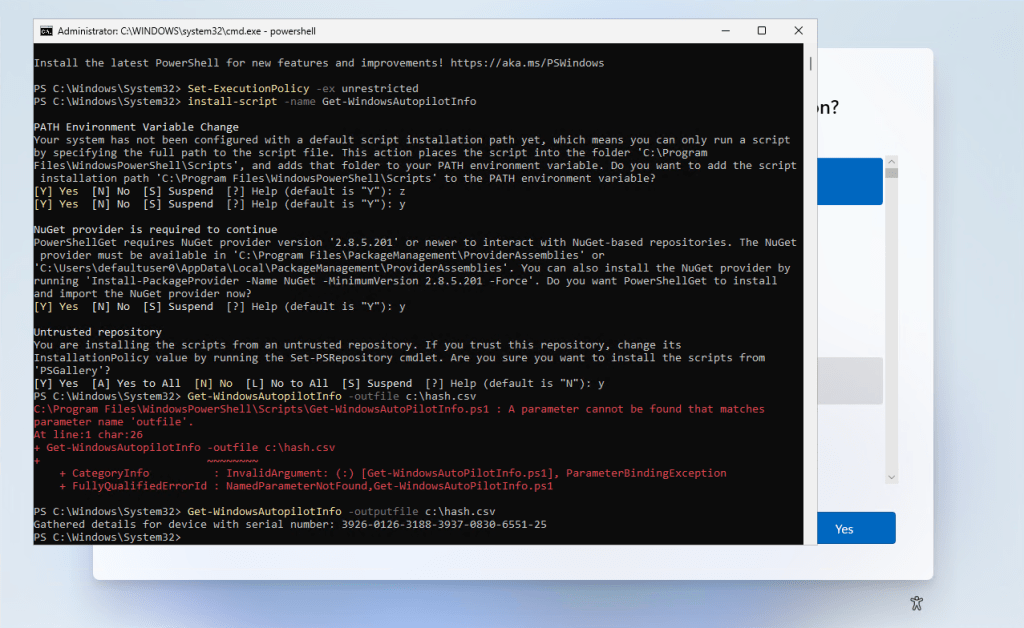
After all this you will have either the hash stored locally somewhere (in my example above c:\hash.csv) or it was uploaded directly to the tenant, which involves then credentials for the Intune tenant (what you should never hand out to users). This introduces a series of problems. Normally the user sitting in front of the device is not very familiar with these tech processes, even though I have mistyped the command above as well. Once the series of commands is executed the csv file needs to be transferred to a second device (mostly a private one) where it can be sent back to IT so they can import the hash in the Intune tenant. It is a very failure prone and cumbersome process. This is where Autopilot Manager will help you out. With Autopilot Manager you will somehow simplify the process, and it gets more user friendly finally.
The starting point is the same, this is something we can’t improve, the user would still need to open up the command prompt in OOBE via [Shift] + [F10] and type in a command. But that’s essentially it.
curl -o ap.exe <URLtoTheClient> & ap <URLtoTheAutopilotManagerService>It will download a small helper via curl ap.exe and calls it then with the Autopilot Manager Service URL:

The ap.exe will do some pre-checks to verify that most vital things are correct, like system time, important URLs are reachable etc. and then it will fetch the hardware hash or Windows Corporate Identifier information. Finally, it will display a user interface telling the user to call the helpdesk for approval:

In Approval mode the helpdesk can view the import request on a website and approve it:

After a short period of time the request is processed. In case of Autopilot hardware hash registration it typically takes between 5-15 min. In case of Windows Corporate Identifier (the screenshot I showed above) it takes just seconds. When finished the user will see a Success and Reboot or Finish button and can proceed with the enrollment.

That’s it, nothing more to do from the user side. No credentials involved no extra hurdles. The service will show the import results, so IT is aware if everything went well.

This works for Windows Autopilot Hardware Hash information or for Windows Corporate Identifier which is new in the v2 version I’m releasing. The Windows Corporate Identifier is needed for the new Windows Autopilot device preparation enrollment when block personally owned devices is enabled.
To upload the Windows Corporate Identifier only, the parameter -u needs to be used on the ap.exe. This is also shown in the help if you call ap.exe /?
curl -o ap.exe <URLtoTheClient> & ap <URLtoTheAutopilotManagerService> -uIf someone wants to support only Windows Corporate Identifiers from now on, this can be achieved by setting the environment variable on the App Service:
AppConfig:AutopilotManagerConfig:UseAutopilotV2ModeOnly to trueThe screenshots above used the -u parameter and published only the Windows Corporate Identifier for the new Windows Autopilot device preparation enrollment. In addition, you can see, the look and feel is adjusted to the new Windows 11 setup theme. The Windows 10 design isn’t appropriate for the new Windows 11 setup experience anymore.
The new version does also fix an issue which occurred for certain instances when opening approve-requests site:

After debugging I believe it has to do something with a .NET update. The latest version is migrated to .NET 8 and fixes this issue. So, if you experience issues with your current implementation, it may be worth to update to the latest v2 version. If your App Service points to my GitHub account with the environment variable
WEBSITE_RUN_FROM_PACKAGE to
https://raw.githubusercontent.com/okieselbach/Autopilot-Manager/master/dist/Artifacts.zip
all you need to do, is to restart the App Service. You will see v2 in the bottom 👌

Download Links
The Azure app service can be found on the GitHub project Autopilot-Manager here:
https://github.com/okieselbach/Autopilot-Manager
The client program can be found on the GitHub project Autopilot-Manager-Client here:
https://github.com/okieselbach/Autopilot-Manager-Client
Final remark
This project is a community release and based on my voluntary work, I appreciate any constructive feedback. Just open a GitHub issue, use GitHub Discussions, or leave a comment here. I will support the solution as best effort and as time allows. I’ll look into bugs and help to get it up and running. On GitHub Discussions I may already have answered specific questions you have, it’s worth a visit. But it is not a commercial product and therefore no support guarantee can be given.
Until then, happy Windows Corporate Identifier and Windows Autopilot Hash importing!


Hi Oli, excellent stuff, as usual.
Greetings from Hamburg! 😉
Hi Oliver,
Thats awesome news, we have used your product in the past and like it a lot!
Keep up the good work 🙂 and its nice to have the error gone in the approval page – that have drived me nuts 😛
/Jesper
Thanks for the nice words. I‘m glad that it is working for everyone again 👌
I am seeing timeout issues with Autopilot manager and in the event logs I see this message as warning. ‘AutopilotManager determined Internet is not available; policy download will queue when available’
Verified the network connection during the OOBE and everything looks fine as per the remote engineer. Are there any specific logs to check what is going on?
First of all, I’m not writing to the eventlog. There is a Windows component with the same name. So, I guess the problem is indeed related to network issues. Logs can be enabled on the App Service > App Service Logs > Application Logging (Filesystem) > Information. Then you need to browse to the logs via Kudu which is under Advanced Tools > Go > Kudu > Debug console > cmd or powershell > see the filsystem > LogFiles > Application
Hey Oliver. You are always providing the community with awesome solutions. Thank you for that.
We were thinking wouldn’t it be beneficial and also relative simple to add a field just below the GroupTag selector to add a text box where we can put in the UPN of a assigned user and then have the app add the Assigned User to the device.
Or even better but not necesarry to have a field that do lookup in Entra and on that note maybe it could also be possible to look up the GroupTag of the tenant as well to populate in the dropdown box.
Keep up the good work.
Good ideas, I’ll put them in the backlog 👍
BTW, the support team reported back to me that they did not need this as the user in their case is is assigned during/after login by the user. But i still think it could be nice, maybe. I will leave you to be the judge of this.
They have now successfully used this solution for when they for various reasons did not have the PC from SCCM brought to AutoPilot beforehand. They are happy.